"You're on mute." "No, you're on mute." Every calling app has its own mute button in a different place, and none of them work when the app is hidden behind other windows. This guide sets up one key that mutes your microphone everywhere, and a tray icon that shows whether it's muted.
What Windows can do on its own
Windows 11 has a call mute shortcut, Win + Alt + K, but it only works in calling apps that support it, and only during a call.
Otherwise you mute the microphone in Settings → System → Sound, under your input device. That works everywhere, but it's several clicks deep.
One key for the microphone with Volume²
Volume² is a free volume control for Windows XP through 11. It has a second "alternative" device next to your speakers, and if you make that your microphone, you can give it its own mute key.
- Install Volume² from the Downloads page.
- Right-click its tray icon, choose Options, and on the Main tab set Alternative audio device to your microphone.
- On the Keyboard tab, press Add. Set Action to Mute On/Off (alternate device) and choose a key combination, for example Ctrl + Shift + M or a spare mouse button.
- Press Apply.
Press the key once to mute the microphone and again to unmute it. It works in every program, whether or not it's in front, because it mutes the microphone itself, not a button inside one app.
See the mute state in the tray
A mute key is only useful if you can tell which state you're in. Volume² can show a second tray icon for the alternative device:
- Open the System tray tab. With an alternative device set, it has a second tab, Alternative device, next to Main device.
- Choose a skin for it. Mic Default Black and Mic Default White are microphone icons made for this.
- Press Apply. If the second icon doesn't show up straight away, restart Volume².
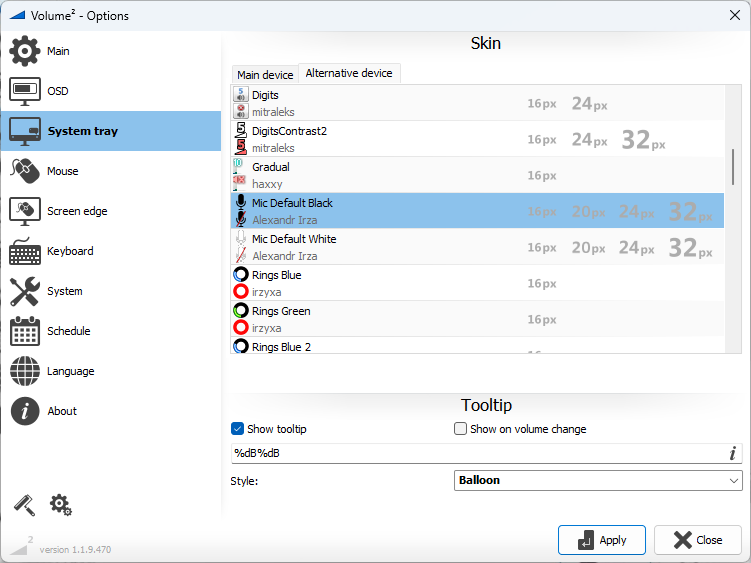
Now the tray shows your speakers and your microphone side by side, and the microphone icon changes when it's muted.
Mute every microphone at once
If you have more than one microphone (a headset and a webcam, say), the Mute All Microphones action mutes all of them with one key. Volume² shows "All Microphones are muted" so you know it worked.
Useful extras
- Separate keys to mute and unmute. Instead of a toggle, use Sound Off (alternate device) and Sound On (alternate device) on two keys, so you always know what a press will do.
- Keys that games ignore. If the key conflicts with a game, use a combination with Win or a mouse button.
Good to know
- With the microphone as the alternative device, that slot is taken, so you can't also use it for per-app volume keys. It's one or the other.
- Volume² mutes the microphone in Windows. A calling app may still show its own microphone as "on", because it's showing its own button, but no sound reaches it.
- If the key stops working after a while, turn on Reload the hooks every 500 ms on the System tab.
Quick answers
Is there a Windows shortcut to mute the microphone?
Windows 11 has Win + Alt + K, but only in calling apps that support it. For a key that works everywhere, use a tool such as Volume².
Will the other person hear that I muted?
No. Muting just stops sound from the microphone; there's no notification to the other side.
Can I use a mouse button?
Yes. Any key or mouse button combination Volume² accepts as a hotkey works for the microphone too.