Laptops have brightness keys. Desktop monitors usually don't: you reach behind the screen and dig through the monitor's own menu with its little buttons. This guide shows how to change the brightness of an external monitor from the keyboard, with a hotkey, on Windows.
What Windows can do on its own
On a laptop, the brightness keys and the slider in Quick Settings (or Settings → System → Display) control the built-in screen.
On a desktop with an external monitor, that slider is often missing or does nothing. Windows only talks to the screens it knows how to dim, and for most external monitors that means none.
Brightness hotkeys with Volume²
Volume² is a free volume control for Windows XP through 11 that can also change screen brightness. On external monitors it changes the monitor's own brightness, the same setting as the buttons on the monitor, using a standard called DDC/CI. It isn't a dark overlay drawn over the screen: the backlight really gets dimmer.
- Install Volume² from the Downloads page.
- Right-click its tray icon, choose Options and open the Keyboard tab.
- Press Add, set Action to Brightness +, click in Keys combination and press the keys you want, for example Win + Right.
- Add a second row with Brightness -, for example Win + Left.
- Press Apply.
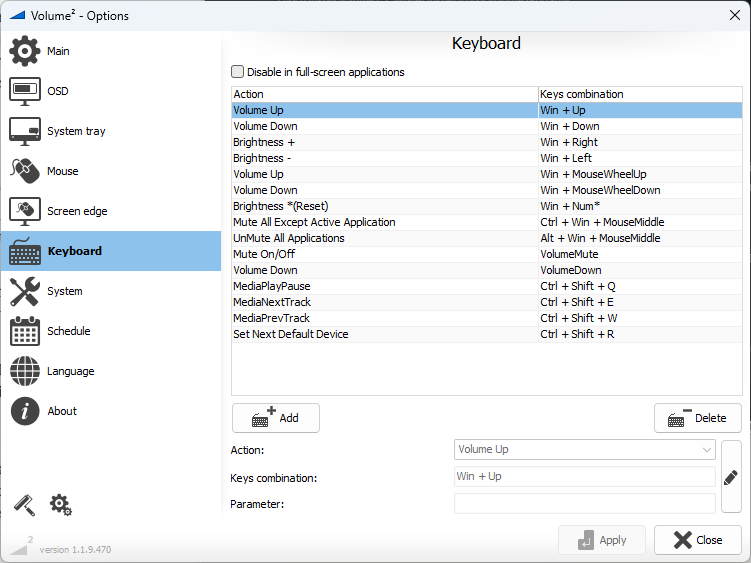
Mouse combinations work too: Win + wheel or a held mouse button with the wheel make a handy brightness knob, as long as they aren't already used for volume.
More brightness actions
- Brightness *(Reset) — resets the brightness in one press.
- Set brightness percent — jumps straight to a level you choose, such as 30% for evenings or 100% for daylight.
- Turn Off Monitor and Turn On Monitor — switch the screen off without touching the PC, handy before leaving the desk.
Dim the screen automatically in the evening
The Schedule tab can change the brightness for you:
- Press Add.
- Give the task a name, such as "Evening".
- Set Action to Set brightness and choose the level.
- Set Run to Every day and pick the time.
Add a second task for the morning with a higher level, and the monitor follows your day without you touching it.
See the level on screen
Volume² can show its on-screen indicator for brightness too. On the System tab under Notifications, make sure Brightness is ticked. On the OSD tab, skins with a light-bulb icon in the list have a brightness look of their own.
If the brightness doesn't change
- Turn on DDC/CI in the monitor's menu. Most monitors from the last ten years support it, but some ship with it switched off. Look for "DDC/CI" in the monitor's own settings, often under "System" or "Other".
- Try the monitor's direct cable. DDC/CI passes through HDMI, DisplayPort and DVI, but some docking stations, KVM switches and adapters don't pass it on.
- Some monitors don't support it at all. A few, especially TVs used as monitors, ignore DDC/CI. Nothing on the PC side can change their backlight.
Quick answers
Can Windows change an external monitor's brightness?
Usually not from its own slider. That slider is meant for laptop screens. Tools that speak DDC/CI, such as Volume², can.
Does this work with more than one monitor?
Volume² changes the monitors that support DDC/CI; how it handles each screen can depend on the monitors and how they're connected. Try your keys once and watch both screens.
Is it safe for the monitor?
Yes. It changes the same brightness setting as the monitor's buttons, just from the keyboard.