A game that's too loud next to a quiet voice chat, a browser tab blaring over your music: Windows can give each program its own volume, but only through a settings window. This guide covers the built-in way first, then how to do it from the keyboard and mouse wheel with Volume².
The built-in way: the Windows volume mixer
Windows 11: open Settings → System → Sound → Volume mixer, or right-click the speaker icon in the taskbar and choose Open volume mixer. Every program that is playing sound gets its own slider, and you can also pick which output device each program uses.
Windows 10: right-click the speaker icon and choose Open Volume mixer for the classic mixer, or go to Settings → System → Sound → App volume and device preferences to also choose a device per program.
Two things to know:
- A program only appears after it has started making sound.
- Each program's level is a percentage of the main volume. At 50% on a program and 40% on the main slider, that program plays at about 20%.
On Windows 11 (23H2 and later) there's also a quicker mixer: press Win + Ctrl + V, or open Quick Settings and choose the mixer next to the volume slider. Either way you still find the right slider and drag it; there's no key that turns one program up or down directly.
Per-app volume from the keyboard and wheel with Volume²
Volume² is a free volume control for Windows XP through 11. It can point your wheel and hotkeys at one program instead of the whole system, in three ways.
1. Control whatever program is in front
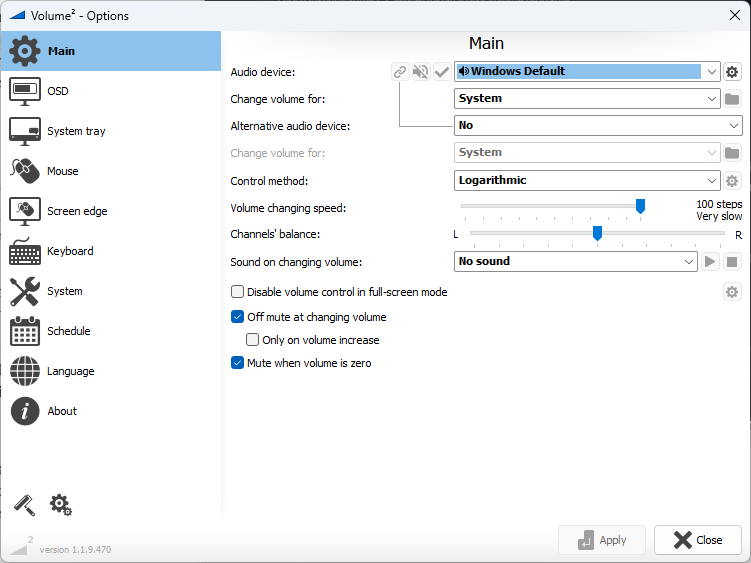
On the Main tab of the settings, set Change volume for to Active application and press Apply.
Now the wheel and the volume hotkeys change the volume of the program whose window is active, and leave everything else alone. Click the game and scroll to turn the game down; click the browser and scroll to turn the browser down.
2. Control a list of chosen programs
Set Change volume for to Application list and press the folder button next to it. Add programs with Choose process (from the ones running now), Choose file (browse to the .exe) or Active applications. The wheel and hotkeys then change only the programs on the list.
3. Give one program its own keys
This is the setup for "system volume on one pair of keys, the game on another":
- On the Main tab, set Alternative audio device to your output device.
- In its Change volume for, choose Application list and add the game.
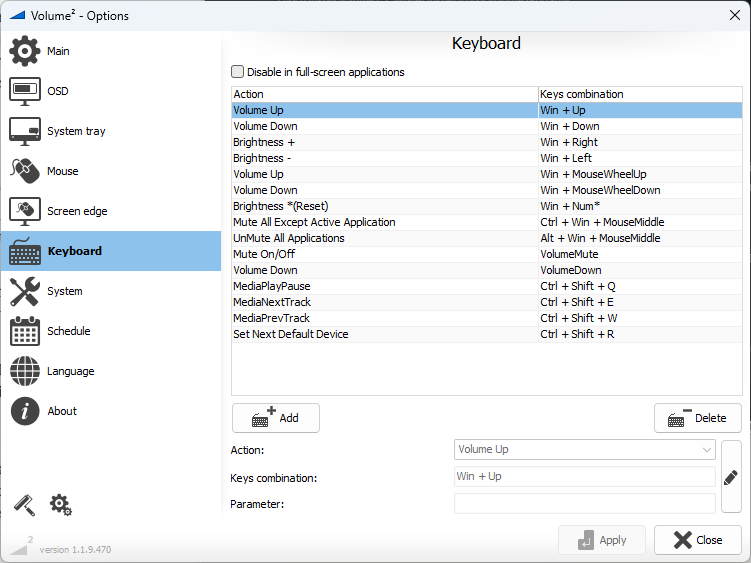
- On the Keyboard tab, add hotkeys with the actions Volume Up (alternate device) and Volume Down (alternate device), and a Mute On/Off (alternate device) if you want one.
Your normal keys and wheel still change the whole system; the new keys only change the game.
There's one alternative channel, so you can give separate keys to one program (or one list) at a time, not to a game, a chat app and a browser all at once. This is a known limit, tracked as issue #262.
Two hotkeys worth adding
The Keyboard tab has two actions made for calls and meetings:
- Mute All Except Active Application — silences every other program and keeps the one in front, such as the meeting app.
- UnMute All Applications — brings everything back afterwards.
Recipes
Turn the game down, keep voice chat as it is
Use method 3 with the game in the list. Your game keys lower only the game; the chat and system stay where they are.
Scroll to adjust whatever you're looking at
Use method 1 (Active application) together with wheel control over the taskbar or with a modifier key. See the guide to controlling volume with the mouse wheel.
Silence everything but the call
Click the meeting window and press your Mute All Except Active Application key. Press UnMute All Applications when you hang up.
Good to know
- Volume² has its own small volume mixer window, but the Windows mixer is still the easier place to see every program at once.
- Sending a program to a different output device (music to speakers, a game to headphones) is done in the Windows mixer, as described above.
- If you use the microphone as the alternative device instead, you get a one-key mic mute. The wiki's Devices and Applications page shows both setups.
Quick answers
Can Windows set a different volume for each app?
Yes, in the volume mixer: Settings → System → Sound → Volume mixer (or Win + Ctrl + V) on Windows 11, or right-click the speaker icon and choose Open Volume mixer on Windows 10.
Can I change one app's volume with a hotkey?
Not in Windows itself. With Volume², either set the main controls to the active application or give one program its own hotkeys through the alternative device.
Does per-app volume work with games in full screen?
Yes. Hotkeys work in full screen, and Active application follows the game while it's in front.