The fastest way to change the volume on a PC is the mouse wheel your hand is already on. Windows only half supports it, though. This guide shows what Windows can do by itself and how to make the wheel control the volume from almost anywhere on the screen.
What Windows can do on its own
Windows 11 (version 22H2 and later) changes the volume when you point at the speaker icon in the taskbar and turn the wheel. There's nothing to switch on. Two limits: it works only over that one small icon, and there's no setting for how far each notch moves the volume.
Windows 10 doesn't react to the wheel over the speaker icon. You have to click the icon first and then use the slider.
If pointing at a 16-pixel icon is fine for you, you're done. If you'd rather scroll over the whole taskbar, a screen edge or any window without aiming first, read on.
Scroll anywhere with Volume²
Volume² is a free volume control for Windows XP through 11 that turns the wheel into a volume knob in many more places than Windows does.
- Install Volume². Get the installer or the portable build from the Downloads page. It's also on the Microsoft Store, Steam, Chocolatey and winget.
- Open the settings. Right-click the Volume² icon in the tray and choose Options.
- Go to the Mouse tab. Tick Rotating a mouse wheel over and choose where the wheel should work.
- Press Apply, point at the place you picked and scroll.
The places you can choose are:
- Icon in notification area — the Volume² icon itself, like Windows 11 does it.
- Taskbar — anywhere on the taskbar, which is a much bigger target.
- Tray — the notification area next to the clock.
- Desktop — over empty desktop.
- Window caption — the title bar of any window.
- Anywhere on the screen — no aiming at all. Best combined with a modifier key (below), so normal scrolling still works.
- OSD Window — over the volume indicator while it's showing.
Scroll over any window with a modifier key
To change the volume without moving the pointer at all, turn on Rotating a mouse wheel (on screen) on the same tab and pick a key or button to hold. The choices are Alt, Ctrl, Shift, Win, Ctrl + Alt, Ctrl + Shift, Alt + Shift, or a held left, right or middle mouse button.
Hold the key, turn the wheel, and the volume changes wherever the pointer is. Without the key, the wheel scrolls pages as normal. Win + wheel is a good default because few programs use it for anything else.
Use the edge of the screen
The Screen edge tab turns one or more screen edges into a volume strip. Tick Change volume when move mouse along screen's edge and choose:
- Active edge(s) — left, top, right or bottom.
- Control method — Scroll (turn the wheel while the pointer touches the edge) or Move (slide the pointer along the edge, no wheel needed).
- Sensitive region's width — how many pixels from the edge count.
Tick Disable in full-screen applications if you play games, so the edge doesn't change the volume while you aim.
Make each notch the right size
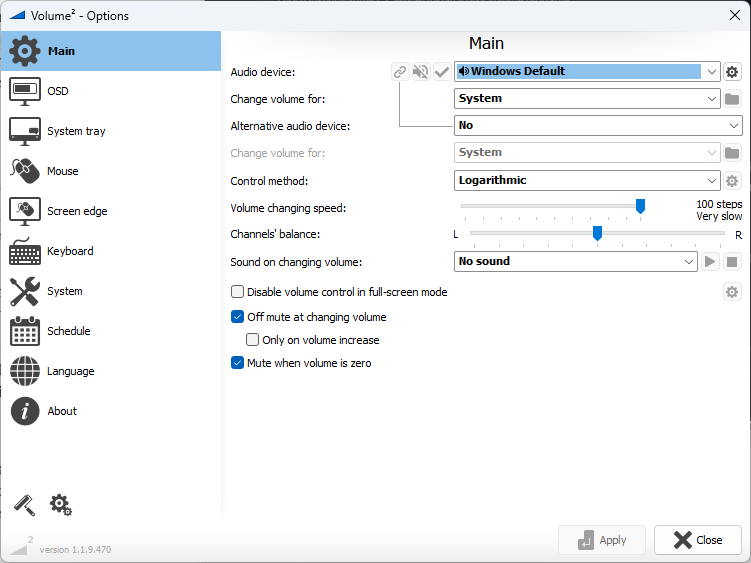
In Windows the step is fixed. In Volume² it's up to you: Main → Volume changing speed sets how many notches it takes to go from silent to full volume. Towards Very slow means more, finer steps; towards Very fast means a few big ones.
Set Main → Control method to Logarithmic as well. Our ears don't hear loudness in straight lines, so with even steps the bottom of the range jumps too much. Logarithmic steps are small at low volume and bigger at the top.
See the level while you scroll
Every change shows an on-screen indicator. You can choose one of three styles and around 40 skins, and Volume² can hide the standard Windows popup so you only see one. The tray icon also shows the current level as a number.

Browse them on the Screenshots page.
More things the wheel can do
- Mute with a middle click. Turn on Mute middle mouse button in the mouse settings.
- Reverse the direction. Invert mouse wheel swaps up and down.
- Control one application. On the Main tab, set Change volume for to Active application and the wheel changes only the program in front. There's a full guide to per-application volume.
- Control a second device. Set an Alternative audio device (a second output, or your microphone) and give it its own wheel or keys.
If the wheel stops working
- Nothing happens over the taskbar, the Start menu or programs run as administrator. Windows doesn't let a normal program read the mouse over those. On the System tab, turn on Run program as Administrator, set Run program at Windows startup to As Task, then restart Volume².
- It works for a while, then stops until you click the tray icon. On the System tab, turn on Reload the hooks every 500 ms.
- Nothing happens with a laptop touchpad. Some touchpad drivers only send wheel events over certain windows. Check the scrolling options in the touchpad's own settings.
- The mouse's own software fights over the wheel. Logitech SetPoint needs smooth scrolling turned off. Other tools that hook the mouse (macro tools, some gaming mouse suites) can conflict too.
The Hotkeys and Mouse Control page on the wiki covers these in more detail.
Quick answers
Can I change the Windows volume with the mouse wheel without installing anything?
On Windows 11 22H2 or later, yes: point at the speaker icon in the taskbar and scroll. On Windows 10, no.
Does Volume² work in games?
Yes, including the modifier key and screen edges. If a game uses the wheel itself, require a modifier key or turn on Disable in full-screen applications.
Is it free?
Yes. The download is the complete program. The Microsoft Store and Steam editions are the same program for a price, and buying one supports development; they can be a version behind the download here.