Press a volume key on Windows and a black box pops up in the corner of the screen, and sometimes it covers what you're looking at. This guide explains how to hide the Windows volume popup, and how to replace it with an indicator you can size, move and restyle.
What the popup is, and why Windows won't hide it
The popup appears whenever the volume keys on your keyboard (Volume Up, Volume Down, Mute) are pressed. Windows has no setting to turn it off. You can't move it or resize it either.
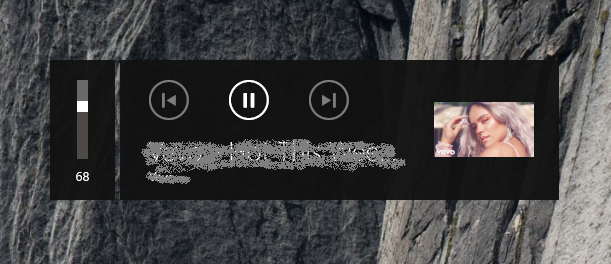
The popup is shown by Windows when it receives the key itself. So the way to stop it is to have another program take those keys first and change the volume itself, without passing the keys on to Windows.
Hide it with Volume²
Volume² is a free volume control for Windows XP through 11 that can take over the volume keys.
- Install Volume² from the Downloads page.
- Right-click its tray icon, choose Options and open the Keyboard tab.
- Add three rows, each with the keyboard's own media key as the Keys combination:
- Mute On/Off — VolumeMute
- Volume Up — VolumeUp
- Volume Down — VolumeDown
- Press Apply.
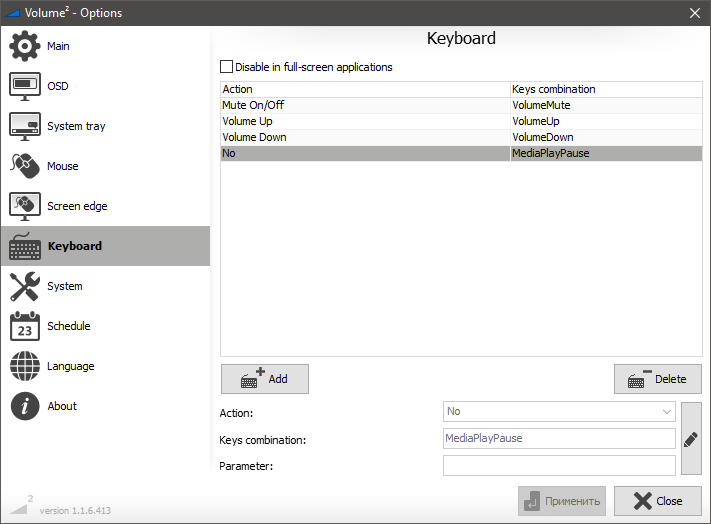
Now the volume keys go to Volume² instead of Windows, and the Windows popup no longer appears. Volume² shows its own indicator instead.
The screenshot, from the Volume² FAQ, also has a fourth row that assigns MediaPlayPause to the action No. That makes the play/pause key do nothing at all, so only add it if that's what you want.
Make the replacement indicator your own
The OSD tab controls the indicator Volume² shows:
- Style — Text (a line of text you write yourself), Skin (a picture-based design, with around 40 to choose from) or TrackBar (a simple bar).
- Position — which display it appears on, and where. It can also appear near the mouse pointer.
- Show OSD during — how long it stays, in seconds.
- Transparency — how see-through it is.
- Disable in full-screen applications — keeps it out of the way in games and videos.
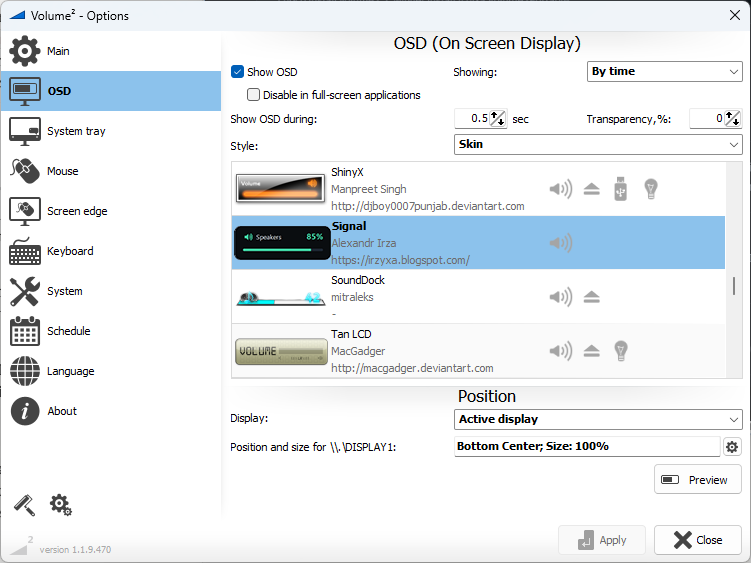
Browse the skins on the Screenshots page, or make your own.
Things to know
- Turning off "Show OSD" doesn't bring the Windows popup back. Volume² still has the keys, so you get no indicator at all. To get the Windows popup back, delete the three rows above.
- It only affects the volume keys. Changing the volume from the Windows speaker icon or from Quick Settings still works as usual.
- The speaker icon in the Windows 11 taskbar can't be hidden. Only the popup can.
- If the popup comes back after a while, turn on Reload the hooks every 500 ms on the System tab.
Quick answers
Can I turn off the Windows volume popup in Settings?
No. Windows has no setting for it. It can be avoided only by having another program handle the volume keys.
Will my keyboard's volume keys still work?
Yes. They still change the volume; Volume² does it instead of Windows, and shows its own indicator.
Can I move the Windows popup instead?
Not with Windows alone. Volume²'s indicator can go anywhere on any screen.