You plug in headphones and the next sound is far too loud. Or the PC blasts a notification at full volume late at night. This guide sets the volume automatically: when you switch to headphones, at a set time, when you lock the PC or when it wakes up.
What Windows can do on its own
Windows keeps a separate level for each output device, so speakers and headphones can each have their own volume. What it can't do is set a level for you at a particular moment: "always start headphones at 30%" or "go quiet at 11 pm". There's no setting for either.
Automatic volume with the Volume² scheduler
Volume² is a free volume control for Windows XP through 11 with a built-in scheduler. A task is a when and a what: "when the audio device changes, set the volume to 30%".
To create a task:
- Install Volume² from the Downloads page.
- Right-click its tray icon, choose Options and open the Schedule tab.
- Press Add.
- In the Edit task window, give the task a name, choose the Action, the Device and level, and when it should Run, then press Apply.
Each task in the list has a checkbox, so you can switch one off without deleting it.
Recipe 1: a safe level whenever you switch to headphones
- Action: Set volume
- Run: On changing audio device
- Device: your headphones
- Volume: the level you want, for example 30
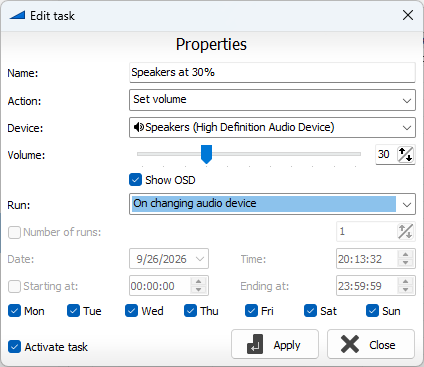
Make one task like this for each device you care about. Every time Windows switches to that device, Volume² sets its level straight away.
Recipe 2: quieter at night
- Action: Set volume, at a low level
- Run: Every day, at the time you want, for example 23:00
A second task at 8:00 with a normal level brings it back in the morning. The Mon to Sun boxes at the bottom of the task choose the days, so weekends can have their own times.
Recipe 3: when you leave and come back
- Run: On lock PC — for example, mute when you lock the computer.
- Run: On unlock PC or On wake up — set a known level when you're back.
- Run: After Idle Time — act after the PC hasn't been used for a while.
Recipe 4: switch the output device automatically
The Set Default Device action changes which device Windows plays through. Combined with a time or with After run application, it can move sound to the headphones when a particular program starts, or back to the speakers in the morning.
Everything the scheduler can do
Actions: Set volume, Mute On/Off, Set balance, Set brightness, Set Default Device, Run program, Show message.
When to run: Once, every minute, every hour, every day (with a choice of days), every set interval, on start, on close, on wake up, on lock and unlock, after idle time, after a program starts, and on changing audio device.
Tasks can also be started from another device on your network. See the guide to controlling the PC volume from your phone.
Good to know
- The scheduler runs as part of Volume², so Volume² has to be running. Set it to start with Windows (System tab, Run program at Windows startup).
- The Run button on the Schedule tab runs a task immediately, which is the quickest way to test it.
- Mute On/Off switches between muted and unmuted. For a task that should always end up muted, check it with Run first.
Quick answers
Can Windows set a different volume for headphones and speakers?
Windows keeps a level for each device, but it can't set one automatically when you switch. The Volume² scheduler can.
Can I lower the volume at night automatically?
Yes, with a scheduler task that sets the volume every day at a set time.
Does the scheduler use the Windows Task Scheduler?
No, it's built into Volume² and needs no extra setup.