You're on the sofa, the film is too quiet, and the PC is across the room. This guide turns your phone into a remote for the PC's volume, over your home Wi-Fi, with no app to install on the phone.
What Windows can do on its own
Windows has no built-in way to control the volume from a phone. The usual options are a remote-desktop app or a paid remote-control app with a companion program on the PC.
A volume remote in the phone's browser with Volume²
Volume² is a free volume control for Windows XP through 11. It can run a small web page on your PC that any phone, tablet or other computer on the same network can open in a browser.
- Install Volume² from the Downloads page.
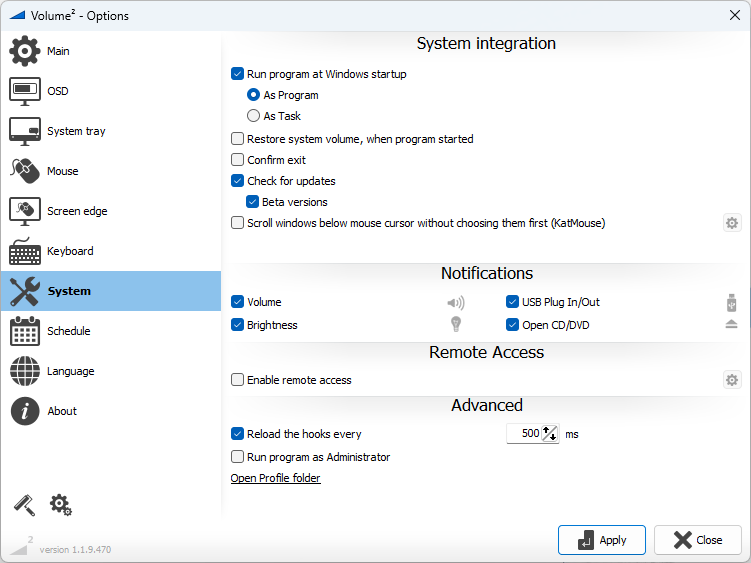
- Right-click its tray icon, choose Options and open the System tab.
- Under Remote Access, tick Enable remote access and press Apply. Volume² starts a small web server, on port 22222 by default. The gear button next to the option holds its settings.
- Check it works on the PC first: open
http://127.0.0.1:22222/in your browser.
Open it on your phone
The phone needs the PC's address on your home network:
- On the PC, open Settings → Network & internet, choose your connection and look for the IPv4 address, something like
192.168.1.23. (Or runipconfigin a command prompt.) - On the phone, connected to the same Wi-Fi, open the browser and go to
http://192.168.1.23:22222/, with your PC's address. - Add it to your home screen so it opens like an app.
If the page opens on the PC but not on the phone, Windows Firewall is usually blocking it. Allow Volume² on private networks when Windows asks, or add a rule for the port in Windows Defender Firewall → Advanced settings.
Add your own buttons
The page that comes with Volume² is deliberately simple. It's a starting point: open it, view its source and add buttons for the things you use.
For anything beyond volume, combine it with the scheduler. Create a task in Volume² (switch to the headphones, set the night-time level, launch a program), then start it over the network:
GET /taskslists your scheduler tasks and their IDs.POST /tasks/execute?id=taskIdruns one.
That also makes Volume² scriptable from home-automation tools, for example Home Assistant's rest_command. See the guide to automatic volume with the scheduler for what tasks can do.
Keep it on your home network
The remote page has no password. Anything that can reach the port can change the volume and run your tasks. That's fine at home, but:
- Don't forward the port on your router. It isn't designed to be reachable from the internet.
- Use it on trusted networks only. Leave it off on laptops you take to cafés or offices, or allow it in the firewall on private networks only.
- To control the PC from outside the home, use a VPN to your home network rather than opening the port.
Quick answers
Do I need an app on my phone?
No. Any browser works: Safari, Chrome, anything.
Does it work with an iPhone and an Android phone?
Yes, and with tablets and other computers too. It's a normal web page.
Can I control the volume from outside my home?
Only through a VPN to your home network. Don't expose the port to the internet.