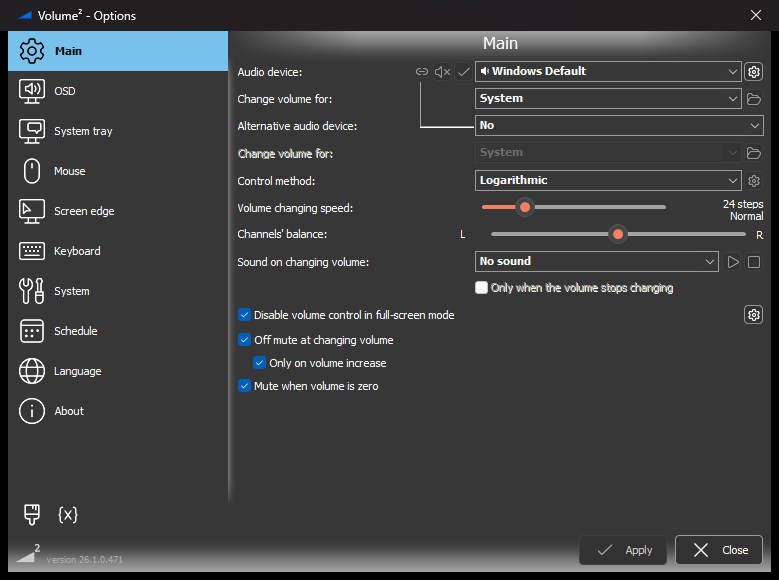
Volume² 26.1 (26.1.0.471) is the biggest update in years. Press a media key and the indicator now shows the track that's playing, with buttons you can click. Roll the wheel over a taskbar button to change just that program's volume. Control every app's volume from your phone. The whole program has been redrawn for Windows 11, with dark mode and sharp icons at any display scaling.
Volume² is free for 64-bit Windows 7 to 11. Download 26.1 as an installer or a portable version. The new installer upgrades your current version in place and keeps your settings.
Highlights
- Media OSD. When you press Play/Pause, Next or Previous, the on-screen indicator shows the cover, title, artist, time and a progress bar. Its buttons work: pause, skip, and drag the bar to seek.
- A clickable OSD. In skins that support it, click the volume bar to set the volume, drag it, or click the speaker to mute.
- Per-app volume from the taskbar. Roll the mouse wheel over a program's taskbar button to change only that program's volume.
- A new remote control page. Open it on your phone and you get sliders for your devices and for every app, updated live. Connect by scanning a QR code.
- Peak meter in the tray. The peak meter can now live in the system tray instead of in a window.
- Windows 11 look. Dark mode uses Windows' own themes. The icons and sliders are redrawn in the Windows 11 style, and there's a new horizontal volume popup like the Windows 11 flyout.
- Sharp at any scaling. SVG skins, an OSD that sizes itself to the display, and windows that scale properly when you move them between monitors.
Media OSD and clickable skins
The media OSD appears when you press a media key. It shows the album cover, title, artist, the elapsed time and length, and a progress bar. Only the buttons the player offers are active; a radio stream, for example, has no Previous or Next. The OSD follows the player as it changes, and in the always-shown mode it stays on screen while a track plays.
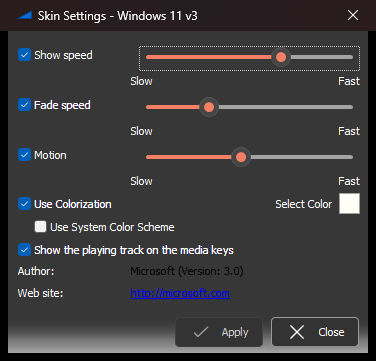
Seven skins have a media OSD: Windows 11 v3, Windows 11 v3 Dark, Windows 10, Windows 10 v2, Windows 10 - Flat Color, Volume HUB and Signal. To turn it off, open the skin's settings and clear Show the playing track on the media keys.
Per-app volume
- Taskbar wheel. Turn on Over a taskbar button, change the volume of that application. Over empty taskbar space the wheel still changes the system volume. It keeps up with a fast scroll and with a touchpad.
- Hotkeys for a chosen app. Volume Up (application), Volume Down (application) and Mute On/Off (application) can be set for a particular program or a list of programs, not only the active one.
- An OSD for app volume. Turn on Application volume under Notifications. When a program's volume changes, even from the Windows mixer, the OSD shows the program's name and icon.
- Store apps, Apple Music and apps with several audio sessions now work with active-application volume.
Remote control from your phone
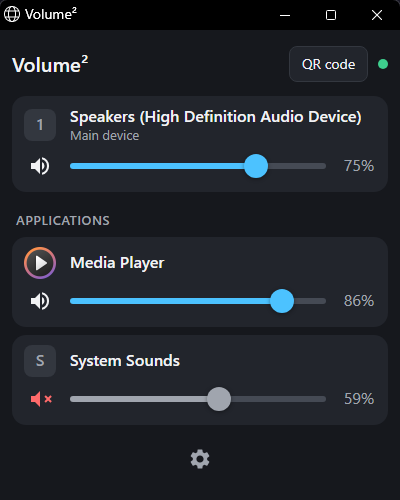
The remote access page has been rebuilt. It shows sliders for the main and alternative devices and for every app, with their icons, and updates live while you change the volume on the PC. You can switch the default output device from it too.
To connect, scan the QR code in Volume². The page is protected by a token, so other devices on the network can't use it. Turning on remote access adds a Windows Firewall rule, and turning it off removes it. A help page lists every command, for anyone who wants to script it.
OSD
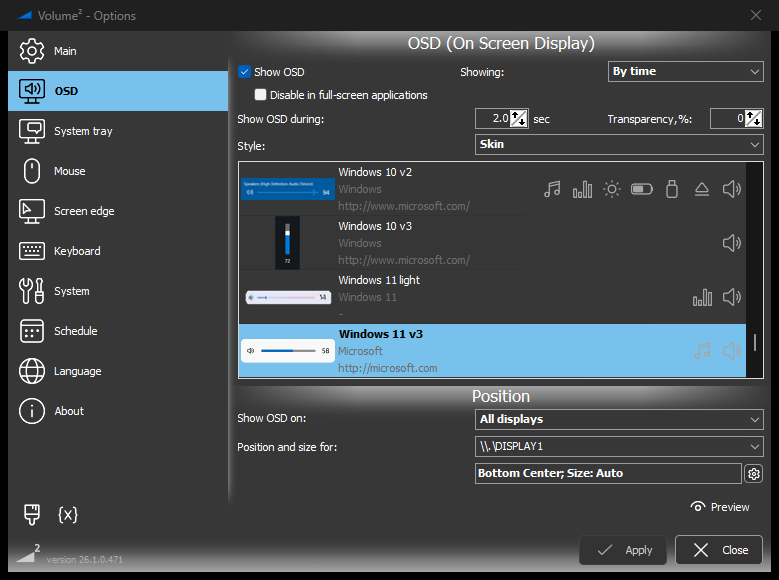
- Motion. The Windows 11 v3 skins slide in from the screen edge and back out, like the Windows 11 flyout. A Slow–Fast slider sets the speed.
- Auto size fits the OSD to the display scaling.
- SVG skins. More skins are drawn in SVG, so they stay crisp at 125%, 150%, 200% and beyond. The installer offers the theme-aware Windows 11 v3 OSD and Volume2 Default tray skins.
- All monitors. The OSD can show on all monitors at once, and its position and size settings belong to each monitor.
- Better colorization. A colored skin now takes your color exactly. A blue skin colored orange used to come out dark green; now it's orange, and it keeps its shading.
- Signal, a new OSD skin.
Tray
- The tray tooltip follows the volume while the mouse is over the icon.
- On Windows 10 and 11, Volume² draws its own tray balloon, because Windows no longer shows the classic one.
- Notifications now also appear with the No icon tray skin.
- The alternative tray icon controls the alternative device.
- Double-clicking the peak meter's tray icon opens its settings.
Peak meter
- Show: as a Window, a Tray icon, or both.
- Audio device: the main or the alternative device, such as a microphone. If the alternative device is unplugged, it falls back to the default device.
- Its settings are grouped into Main, Skin and Position.
Volume control
- Logarithmic volume now follows a measured curve. It skips no steps, and a percentage means the same level at any step count.
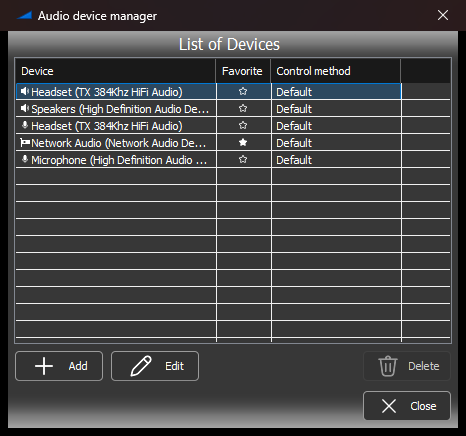
- Control method per device is set in a Control method column of the Audio Device Manager. Windows Default follows the method of whichever device is the default.
- The Table method can be edited in Percent as well as in values.
- Lock volume against changes made outside Volume².
- Each device keeps its own balance, even through volume 0.
- OSC devices report their volume back, and work with the alternative device and volume lock.
Hotkeys, mouse and scheduler
- New hotkey actions: Audio Enhancements On/Off for a chosen device, and turning screen edge control on and off.
- The right-hand Ctrl, Shift and Win keys can be used in shortcuts.
- A list of applications in which Volume²'s hotkeys stay out of the way.
- The full-screen application list can be inverted, to name the applications in which the volume control is disabled.
- The mouse hook runs on its own thread, so fast scrolling no longer makes the cursor lag.
- Schedules can run after an application closes, and one schedule can watch several applications.
- Every schedules no longer hang Volume² at startup, and they also run when it starts.
- The volume-change sound has a new option, Only when the volume stops changing. Short sounds are no longer lost.
Windows 11 look and high-DPI
- Dark mode with Windows' own themes, including the menus.
- Windows 11 style icons, sharp at any DPI, and Windows 11 style sliders. Balance sliders fill from the centre and snap softly to the middle.
- A horizontal volume popup like Windows 11, with a speaker button, percentage, and L/R balance. The vertical popup is still there.
- The Options windows no longer get cut off after a DPI change, and they scale correctly between monitors with different DPI.
- Every number box accepts typed values.
Fixes
- Volume control works again after a Remote Desktop session.
- The device list no longer shrinks after the PC wakes from sleep.
- A single left click on the tray icon works again.
- Ctrl no longer stays stuck (Sticky Keys) after a hotkey.
- The OSD no longer drifts off screen after display changes.
- Right-aligned OSD text is no longer cut to one character ("1…" instead of "100%").
- Off mute now works at low logarithmic levels.
- Brightness reset restores the original brightness again.
- The OSD no longer stalls when the volume changes, and no longer crashes when the default device isn't in the device list yet.
- Setting the volume reaches every channel of the device, even after the default device changes.
- Start with Windows starts Volume² once, minimised to the tray.
- The peak meter context menu draws correctly with the Classic and High Contrast themes.
Languages
New: Thai, Hebrew and Georgian. Korean was updated (thanks, VenusGirl), and the other translations were completed and corrected. The language files are now UTF-8, so translators can edit and review them on GitHub.
For skin authors
A skin can keep all its SVG pictures in one Skin.svg sheet, add a media OSD, and make any element a button. Skins can also show the icon of the app whose volume changed. Everything is documented in the Docs folder on GitHub. The skin guide covers the basics.
Download
Get Volume² 26.1 from the Downloads page. It needs 64-bit Windows 7, 8, 10 or 11. For Windows XP or 32-bit Windows, use 1.1.9.468, which is still on the GitHub releases page.
Found a bug or have an idea? Open an issue on GitHub.

