Volume² 26.2 (26.2.0.476) brings a Windows 11 style volume mixer and a new audio device manager, and the media OSD now shows the sound that's playing. Options that need administrator rights now ask for permission just once.
Volume² is free for 64-bit Windows 7 to 11. Download 26.2 as an installer or a portable version. The installer upgrades 26.1 in place and keeps your settings.
Highlights
- Volume mixer. A Windows 11 style mixer with a slider for every device and every app, live level meters, and light and dark themes.
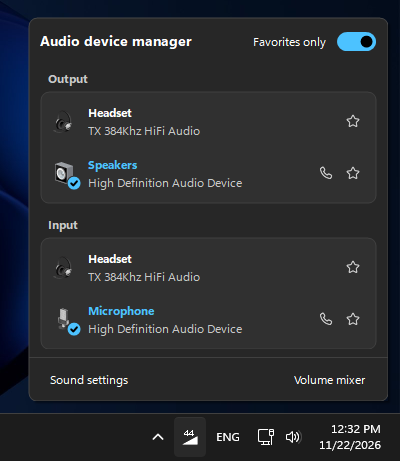
- Audio device manager. Output and Input cards, a star for your favourite devices, a right-click menu and full keyboard control.
- Favourites everywhere. Star a device and turn on Favorites only: the tray menu, the mixer, the phone remote and the next/previous device hotkeys then show only your starred devices.
- The media OSD shows the sound. Level bars or a peak meter move with the music, and the OSD shows the player's icon and name.
- One UAC prompt. Options that need administrator rights are applied together, after a single prompt.
Volume mixer and device manager
The classic mixer is replaced by one that looks and works like Windows 11's:

- Output and Input sections: sliders for your speakers or headset, every app playing sound, System sounds and your microphone, each with a live level meter. They follow every change at once, even while you drag.
- Click a device's name to open the audio device manager, or its picture to make it the default device. All devices is a Windows 11 toggle switch, hidden when you have only one output device.
- It opens in the tray's corner and scrolls when the list is taller than the screen. A right-click on the tray icon closes it.
- No volume OSD pops up while the mixer is open.
- Right-click an app for Mute, Set to 100% and Mute all other apps.
- The footer links to Sound settings and to the System volume mixer, Windows' own one.

Tray clicks can open the new Volume mixer or the Audio device manager, set on the Mouse page under Tray mouse events.
The audio device manager is redrawn in the same style, with Output and Input cards. The default device is marked with a check, and a phone icon marks the default communication device. It has a right-click menu, and you can work it from the keyboard. A star marks a favourite and is saved at once, and Favorites only hides the rest. Favourites of unplugged devices are kept, and clearing the last star shows every device again.
Volume popup
- The popup is a Windows 11 style flyout with rounded corners, opening over the tray icon.
- It is vertical again by default. The horizontal one from 26.1 is still available: set
HorizontalVolumeControl=1in UserVariables. - A click on the slider sets the volume at once, with no ding when you let go.
Media OSD

- The sound playing now. Level bars, or a peak meter in skins that have one, move with the music, measured against the loudest of the last few seconds. The OSD also stays up between two tracks.
- Player icon and name. The OSD shows which app is playing, with a sharp icon. Its texts take the same codes as the volume OSD.
- Always shown, without a key. With Showing: Always, the OSD shows the media OSD while a player has a track, paused too, without pressing a media key first.
- A hotkey to show it. The new Show Media OSD action shows it without a media key.
- Long titles wrap onto more lines instead of being cut, and the title and time stay visible while the device is muted.
- The option moved. The media OSD is now turned on and off with Media keys on the System page, under Notifications, instead of in Skin Settings. Every notification icon there explains itself in a hint.
- Media keys stay with Windows when they should. Only a skin with a media OSD takes the media keys; with the Text or TrackBar style, Windows keeps them. On Windows 11 the keys go on to the player and the OSD follows it, so one Play/Pause press no longer toggles twice.
Remote control from your phone
The remote control page now shows the track that's playing, with play/pause, previous, next and a seek bar. The player's own volume slider sits right above it.

OSD
- Sharper drawing. App icons and album covers are no longer blurred. Text has clean edges over translucent backs, and a translucent back stays translucent.
- Always on all displays keeps a copy of the OSD on every display.
- Position. An OSD dragged into a corner keeps a corner position, and pressing a button or bar on it no longer drags it. The position dialog previews an always-shown OSD too, Cancel puts the position back, and the screen picture follows the light or dark theme.
- Exclude Taskbar keeps clear of an auto-hide taskbar on any screen edge. Coordinates work as they did before 26.1, and an OSD can hang over a screen edge again.
- The brightness and battery OSDs take the skin's colour, like the volume OSD.
Per-app volume
- The Active application and Application list modes no longer change the system volume when the app has no sound. Only the wheel over the taskbar still falls back to the system volume.
- The wheel over a taskbar button (Windows 11) changes the app's volume on whichever output device it plays.
- The app volume OSD no longer shows when a player sets the level it already has.
Administrator rights and start-up
- One UAC prompt on Apply. All options that need administrator rights are applied together, and a shield shows which ones they are: Run program as Administrator, Enable remote access, and Apply itself.
- Starting with Windows as administrator registers its task through UAC when Volume² isn't elevated yet.
- The start-up task no longer has a time limit, so Task Scheduler stops ending Volume² after three days. It now starts at normal priority too.
Fixes
- Fast mice keep their polling rate. Volume² removes its mouse hook when all mouse actions are off, and while the cursor is over a full-screen app if Disable volume control in full-screen mode is on.
- Win + wheel hotkeys keep up with a fast wheel.
- A shortcut acts on the main device even when it includes the key that switches the wheel to the alternative device.
- The OSD and the tray balloon no longer show the mute icon after the volume is raised from 0.
- The tray balloon no longer flickers while the mouse rests on the tray icon, and stays over the icon instead of following the pointer.
- Unmute on volume change no longer undoes the first mute after start-up or after a device switch.
- Windows' own volume mixer, opened from Volume², closes when another window takes focus and opens on the screen it was called from.
For skin authors
- HoverImage and PressedImage put a picture behind any clickable element, and CSS
:hoverand:activerules in a button's SVG work too. Parts withclass="glyph"stay on top. - Shadows are declared per side, so a skin with a shadow still reaches the screen edge. An SVG skin is placed by what its back draws, without its
class="shadow"parts. - Media texts take a Format with
%t(title) and%a(artist), plus WordWrap and MaxHeight. The progress bar can useFillColor="Colorization".
The details are in the Docs folder on GitHub.
Download
Get Volume² 26.2 from its GitHub release. It needs 64-bit Windows 7, 8, 10 or 11. For Windows XP or 32-bit Windows, use 1.1.9.468, which is still on the GitHub releases page.
Found a bug or have an idea? Open an issue on GitHub.